
Page1234
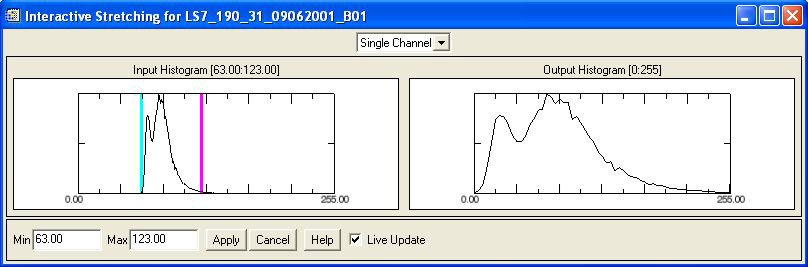
To enhance the image choose Enhance/Interactive Stretching.
Drag the cyan and magenta vertical lines and the output histogram will be stretched with the image immediately updated with the results.
The image has now been linear stretched from the lowest pixel value of 63 to the highest pixel value of 123. Note that the image now shows more contrast.
Open the three other bands:
-
LS7_190_31_09062001_B02.tif
-
LS7_190_31_09062001_B03.tif
-
LS7_190_31_09062001_B04.tif
and perform interactive stretching to improve the contrast as above.
To make a natural colour combination choose Image/Combine from…/(Red Green Blue).
Select the colour channels in this way:
LS7_190_31_09062001_B03.tif for the Red band
LS7_190_31_09062001_B02.tif for the Green band
LS7_190_31_09062001_B01.tif for the Blue band

Select the images for each of the three bands and click OK.

To make a false colour combination select the colour channels in this way:
LS7_190_31_09062001_B04.tif for the Red band
LS7_190_31_09062001_B03.tif for the Green band
LS7_190_31_09062001_B02.tif for the Blue band

Page1234
 English